Newsletter Stress to Success
It's one hour before your weekly newsletter is scheduled to send. Two ministries are still finalizing their announcement wording, and the youth team just sent over a graphic that's not quite the right size. This is after three days of back-and-forth emails trying to pull everything together. You finally hit send just under the wire, relieved but only briefly, because you know the whole process starts again tomorrow.
Building a weekly newsletter for you congregation can feel like a massive team effort. There are events, ministry updates, and sermon series to promote, and each piece of content is usually owned by a different department. I've heard plenty of stories about juggling Google Docs, copying and pasting content, resizing graphics, and constant follow-ups just to meet the deadline. And then, after all that, the email goes out...only to discover the template looks off on mobile, images are oversized on desktop, and the footer somehow wandered out of place.
If that sounds familiar, you're not alone. But there is a better way. One where collaboration is smoother, quality is consistent, and the process doesn't feel like a scramble every week. And the best part? It can all be done using Rock's core functionality.
Here’s what that can look like.
Imagine This
Your ministry teams get a friendly reminder email if they haven't submitted their newsletter content by 5p.m. on Wednesday.
They click the link and land on a simple form powered by a content channel. From there, they can type their update in a word-style editor, upload a graphic, and add a link, no code required. They also choose when their content should appear in the newsletter. Once submitted, it's saved with a Pending status.
Teams can even plan ahead. If someone is going to be out of town, they can enter content in advance and schedule it for a future date.
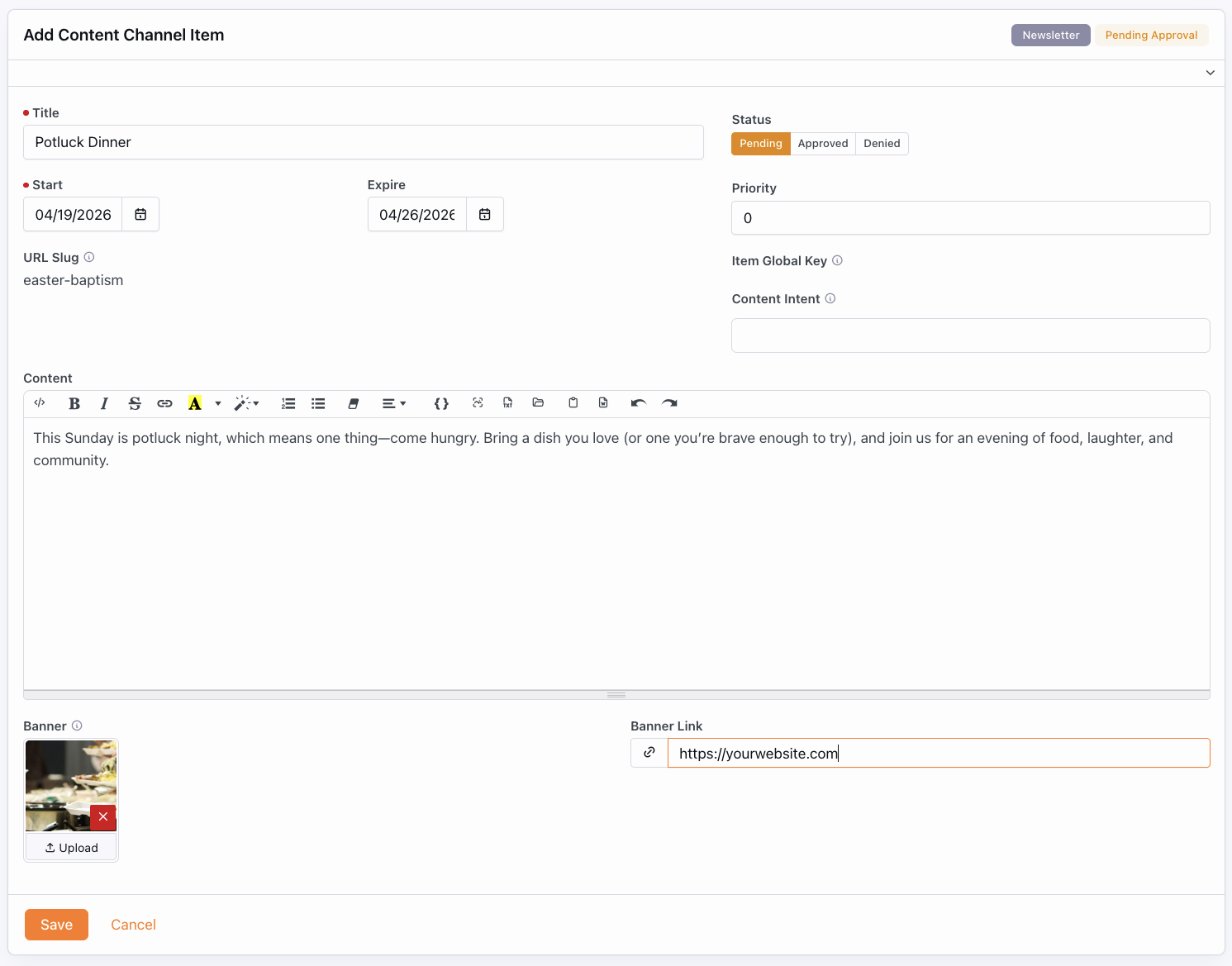 Entering Newsletter Items.
A newsletter approver reviews the Pending items scheduled for the week, makes any needed edits, and approves them.
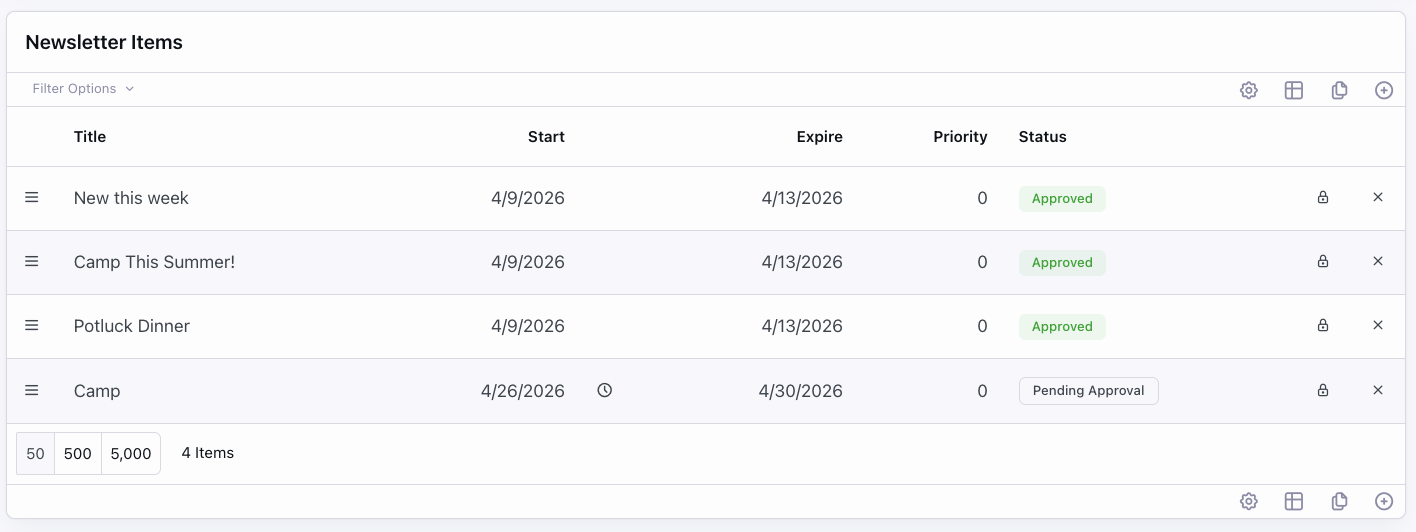 Vieweing Submitted Newsletter Items.
Once approved, the content automatically flows into a pre-formatted newsletter template using simple Lava to display the right content channel items.
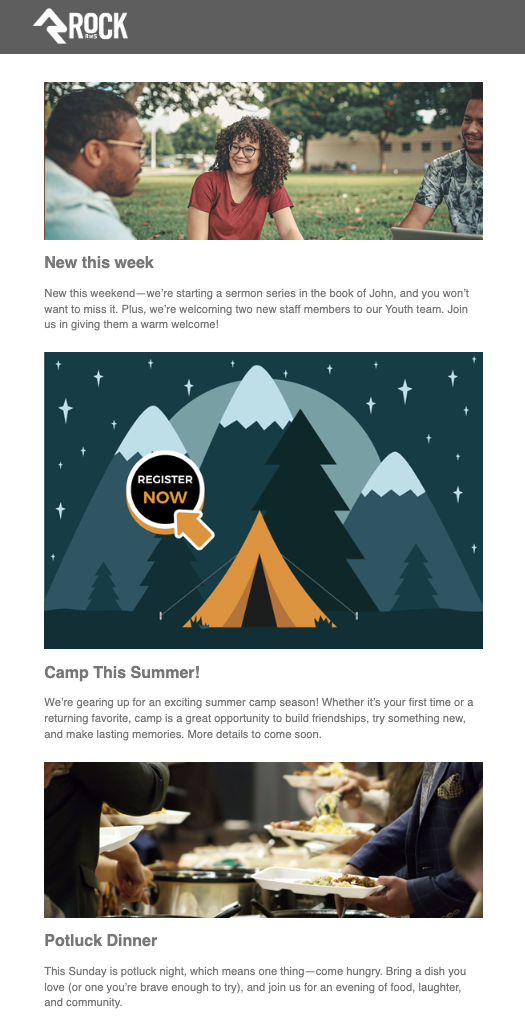 Content Channel View in Template.
How'd You Do That?
We built this process using a few core tools in Rock:
• Content Channel(s)
• Communication Template
• Workflow for email reminder prompts
Step 1: Setting up a dedicated Content Channel.
Editing a communications template is less than ideal, especially when those edits have to be made in code. Add in the challenge of collecting multiple articles at different times, and the process can quickly become difficult to manage.
Using a content channel not only gives each ministry area more ownership over its content, but also makes it much easier for you to manage updates and edits.
We used a date range channel type so users can choose when their content should appear. Depending on your process, you could also use a single date, or no date at all. Pick what works best for your team.
For the content field, selecting the HTML editor gives users a familiar, word-processor-style experience, while still allowing more advanced users to work directly in HTML if needed.
You can also enhance your setup with Item Attributes for things like buttons, links, or additional content, or keep it simple and streamlined.
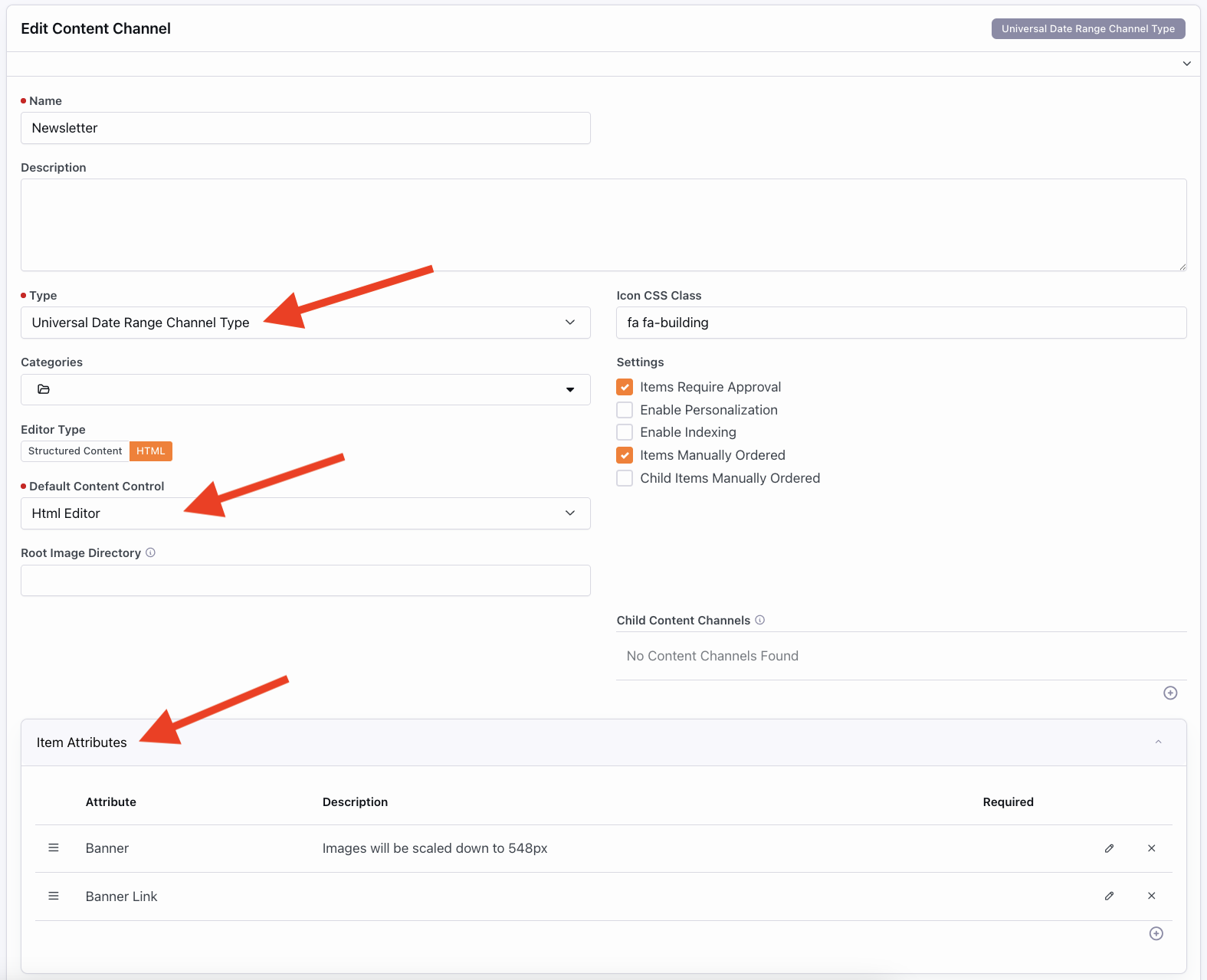 Content Channel Setup.
💡 Quick rule of thumb for images
- Keep images under 600px and 200KB
- Use JPG or PNG
- Compress with tools like TinyPNG or Squoosh
Step 2: Creating a Communications Template
Next, create a new communications template or use an existing one. If you're creating a new template, be sure to include the required dropzone structure if you plan to use it in the Email Wizard.
As you build your template, format it to constrain image sizes and ensure they display well across different devices and platforms.
<div class="structure-dropzone">
<div class="dropzone">
Step 3: Adding Lava to the Template.
This is where the magic happens. Add basic Lava to the communication template (as shown below) to display entries from your content channel.
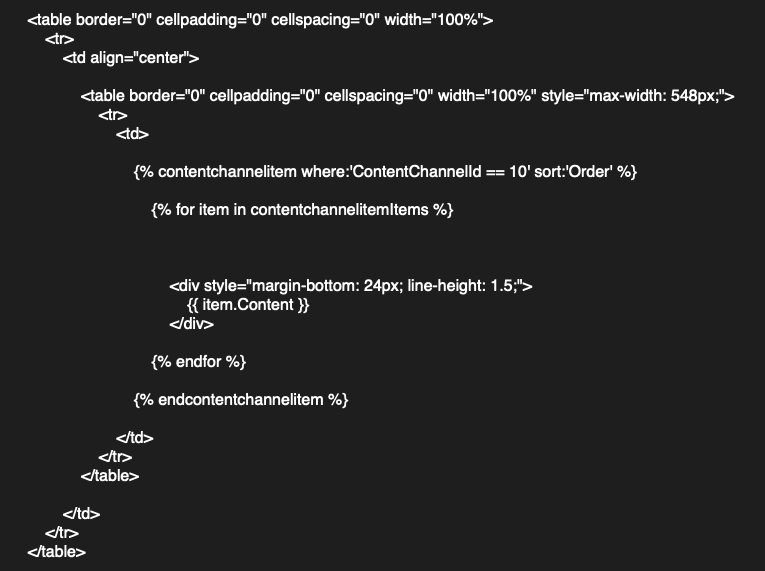 Basic Lava to Show Content Channel Items.
From here, you can build additional logic depending on how refined you want your process to be:
- Show items only if the current date falls within their date range
- Exclude expired content
- Control ordering (manual order or by start date)
- Conditionally show images only when they exist
Using conditional logic is especially helpful if you're displaying multiple articles or want ministries to work ahead by scheduling their entries in advance.
Once these pieces are in place, you’ve got more than a template, you’ve got a smooth, working process.
Avoid the pitfall of turning your weekly newsletter into a full-time job for one person. With Rock, you can build a process that's easy to use, efficient to manage, and consistently polished from start to finish.
Want help?
Interested in implementing a process like this? Use the Contact Us button below, we'd be happy to help you get started.
Want the full Lava with the extra conditions mentioned above? Follow us on social media, then reach out using the Contact Us form and we'll send it your way.
Looking Ahead
Next week: New Website theme, Compass: Urban Hope
Looking ahead, we’re excited to share something new in the Rock Shop. Compass: Urban Hope is a modern theme designed to give your site a clean, updated look—without the time and cost of a full custom build. It’s flexible, easy to manage, and built to work seamlessly with the latest Rock features.
If your website has been sitting on the “we should probably update this” list, this could be a simple way to move that forward.
About the Author
A published author with more than 15 years in church ministry, Tina D. Stephens serves as Ministry Analyst & Content Writer at 9 Embers, crafting clear, practical content to help ministries use Rock RMS well.